Connect Anava Edge to Claude Desktop
Ask which cameras are online from a chat on your Mac or Windows PC. This invitation-based installation is available for evaluation. Your site administrator supplies the approved prerelease and decides which computers can read the site.
Start installationInstall the extension
If your administrator sent a private install kit, extract the entire ZIP into a folder you can keep. Open START-HERE.html for the approved package, release channel and checksum. The included site-invitation.json stays on your computer.
Use the desktop package on your computer. If you are still setting up the cameras themselves, start with the Axis camera installation guide.
- In current Claude Desktop, open Settings → Desktop app → Extensions → Manage → Advanced settings. Earlier versions place Extensions directly under Settings. Choose Install extension and select the customer
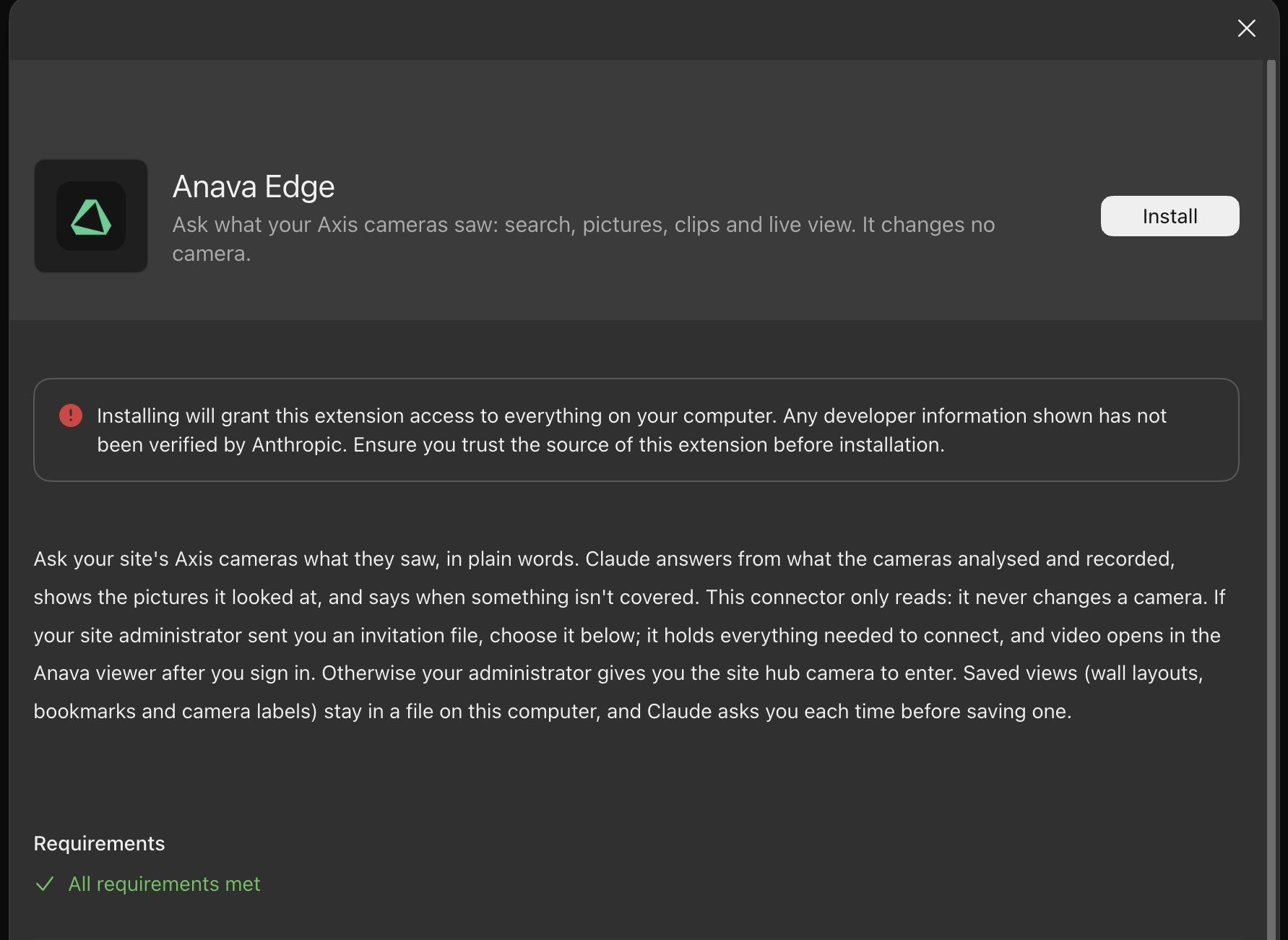
.mcpbfile. - Check the name Anava Edge, the version your administrator supplied and All requirements met. Claude warns that a local extension can access everything on your computer and that Anthropic has not verified the developer information. Check the file against the supplied checksum before proceeding.
- Click Install and confirm in the native dialog. Cancel returns you to the preview. After installation, open Configure for Anava Edge in Extensions.
How to check the download
Open a terminal in the download folder. Replace the example filename with your file’s actual name. Compare the entire result with the SHA-256 from your administrator’s release record.
Mac Terminal
shasum -a 256 "customer-extension.mcpb"
Windows PowerShell
Get-FileHash "customer-extension.mcpb" -Algorithm SHA256
Install from your organization’s directory
If your team’s owner has added Anava Edge to Claude, open Settings → Desktop app → Extensions → Manage → Browse extensions. Choose your organization’s approved Anava Edge entry and install it. Then configure the site invitation below.
For Team and Enterprise owners
In Organization settings → Connectors → Desktop, choose Add custom extension, upload the site-approved customer MCPB, then choose Add to team. Test discovery with a member seat. Keep the same manifest name and increment the version for updates. Anthropic’s organization directory instructions
Connect your site
- Under Site invitation file, choose Browse, pick your invitation and leave the hub camera field empty. If you see a text box, enter the full path to the invitation file. Cancel leaves the selection unchanged.
- Choose Save, then confirm Save again. Claude restarts the connector with the selected invitation.
- A new computer creates its own device key. If access is pending, give your administrator the public fingerprint through your site’s agreed channel. A named reviewer checks the fingerprint and approves metadata access with their passkey. An already admitted computer can proceed to its first question.
This grants access to camera status and text records. Viewing footage and administering cameras require separate permissions.
Check your first answer
Use Anava Edge to list the cameras at my site. How many answer a health check?
In a new Claude chat, ask the question above. For each expected read, choose Allow once. The validated run used List cameras, Camera health and Check a draft answer.
Check that the answer names your site or describes its scope and gives a camera count. Quit Claude completely, reopen it and repeat the question. A working installation reuses the saved site invitation.
Verified in the lab On macOS 27.2 with Claude Desktop 7.37095.0 and customer bundle 2026.11.630-rc.1, one of one cameras answered before and after restart on a previously approved Mac. On Windows, Claude Desktop 6.28899.6 installed the signed .629 prerelease with a text-path field. A .629 test build verified Browse, Save and the pending-approval response. The signed .630 picker and a successful first answer on a newly approved Windows device still await verification.
If you get stuck
Claude says “Anava Edge couldn’t start”
Open Configure and check the invitation field. The .630 release candidate exits when both the hub and invitation are blank. Select the invitation, confirm Save and try the first question again.
How can I give support a connection check?
If your version of List cameras offers a connection check, ask Claude to run it and copy the summary. It reports device admission and the number of cameras that answered. With earlier packages, ask for the health count and share only that count and the displayed status.
My computer is waiting for approval
If your connector offers it, ask Claude to show this computer’s public approval fingerprint and send it to your site administrator through your agreed channel. An administrator with the installed connector CLI can help you run anava-edge-mcp metadata-key as your desktop user. After approval is delivered, ask for the camera list again.
I can’t find Install extension or Browse
Check with your Claude organization administrator if local extensions are restricted. Earlier Anava bundles may show a text field. Ask your site administrator for the approved package with the file picker.
My Mac cannot reach the site
Connect to the site network or its approved remote connection. If macOS asks for Local Network access while you use the connector, verify the requesting app and allow access to the intended site.
The camera answers health checks but search is unavailable
Health and search use different site capabilities. Ask the administrator whether Ask Anava is enabled and whether the camera has an index for the requested time.